Open it
Sign in and open the dashboard. Overview shows one machine at the top, and every machine you can open sits in a row below it.
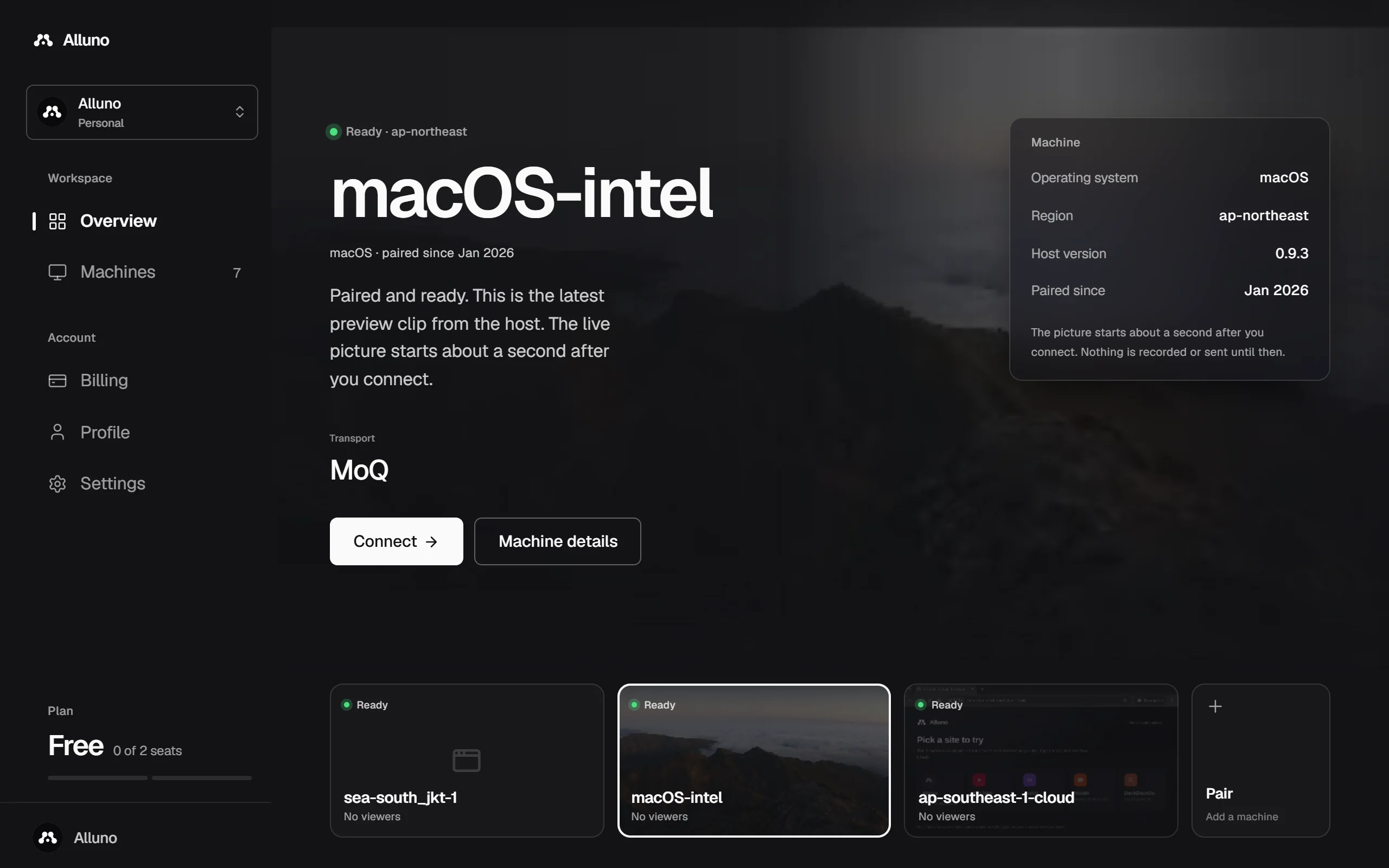
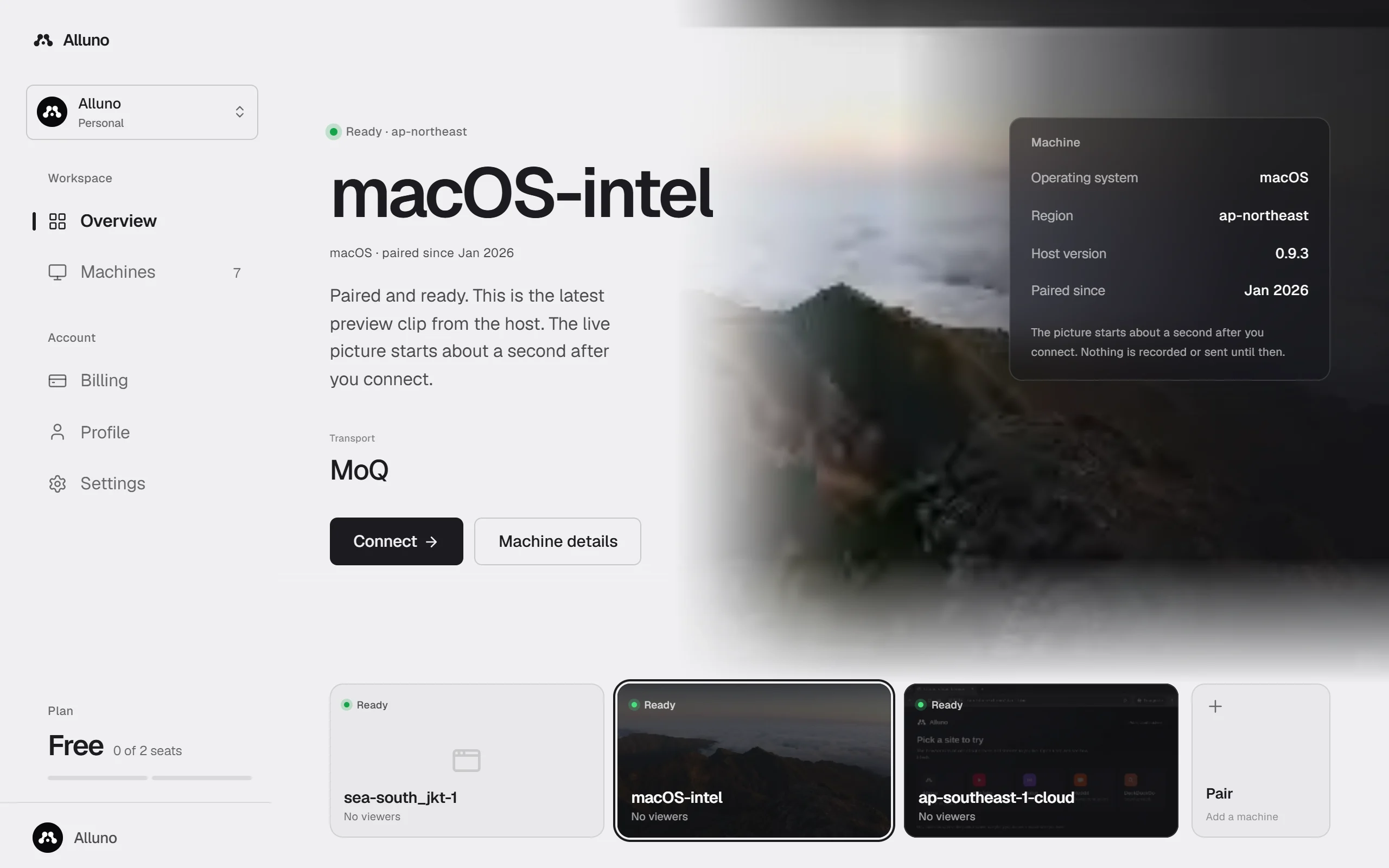
- Choose a machine in the row to show it at the top. Its state, region and transport are there, with Connect to open it and Machine details for its page.
- The panel on the right lists its operating system, region, host version and the month it was paired.
- The last tile, Pair, adds a machine. See Machines and pairing.
What the states mean
Readystate
The machine is online and nobody is watching. The picture starts about a second after someone connects.
In sessionstate
Someone is connected now. The tile counts the viewers.
Offlinestate
The app on the machine is closed, the computer is off, or it has no connection.
The host only captures while someone is watching, so a ready machine shows its system's icon. On a paid plan with preview clips on, its tile plays the last few seconds recorded from a session instead.
The sidebar
- The switcher at the top moves between your personal workspace and the organizations you belong to.
- Overview and Machines are your machines. A machine you open adds Machine details and Settings under them.
- Billing, Profile and Settings belong to your account.
- At the bottom, your plan and how many of its seats are in use.