Open them
Open a machine from Machines and choose Settings. Four tabs sit at the top, each with a one line summary under it: Access, Pipeline, People and Invites.
Access
Name and access holds who can find the machine and who can start a session on it. They are separate, so a machine can be listed publicly and still only let you in.
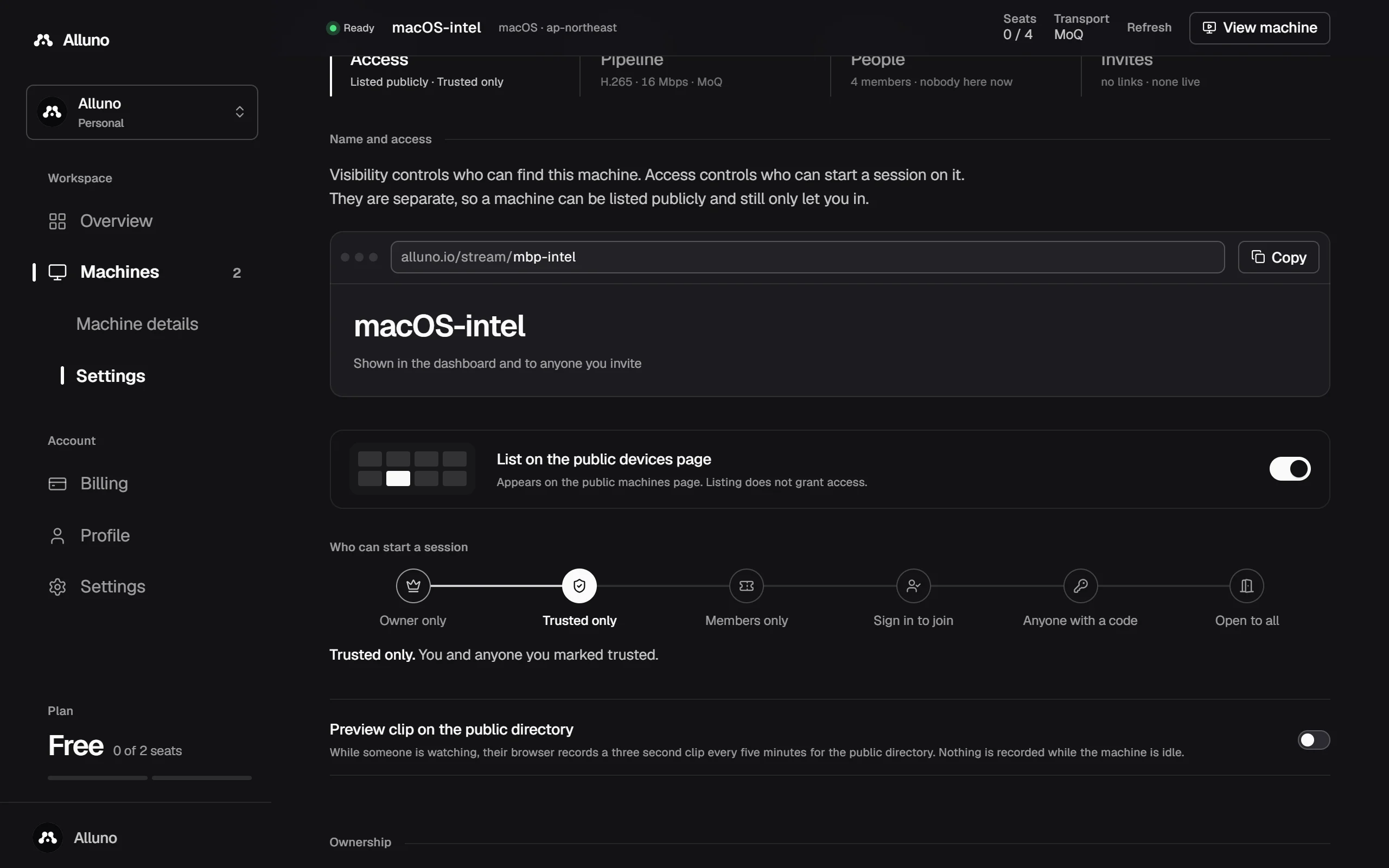
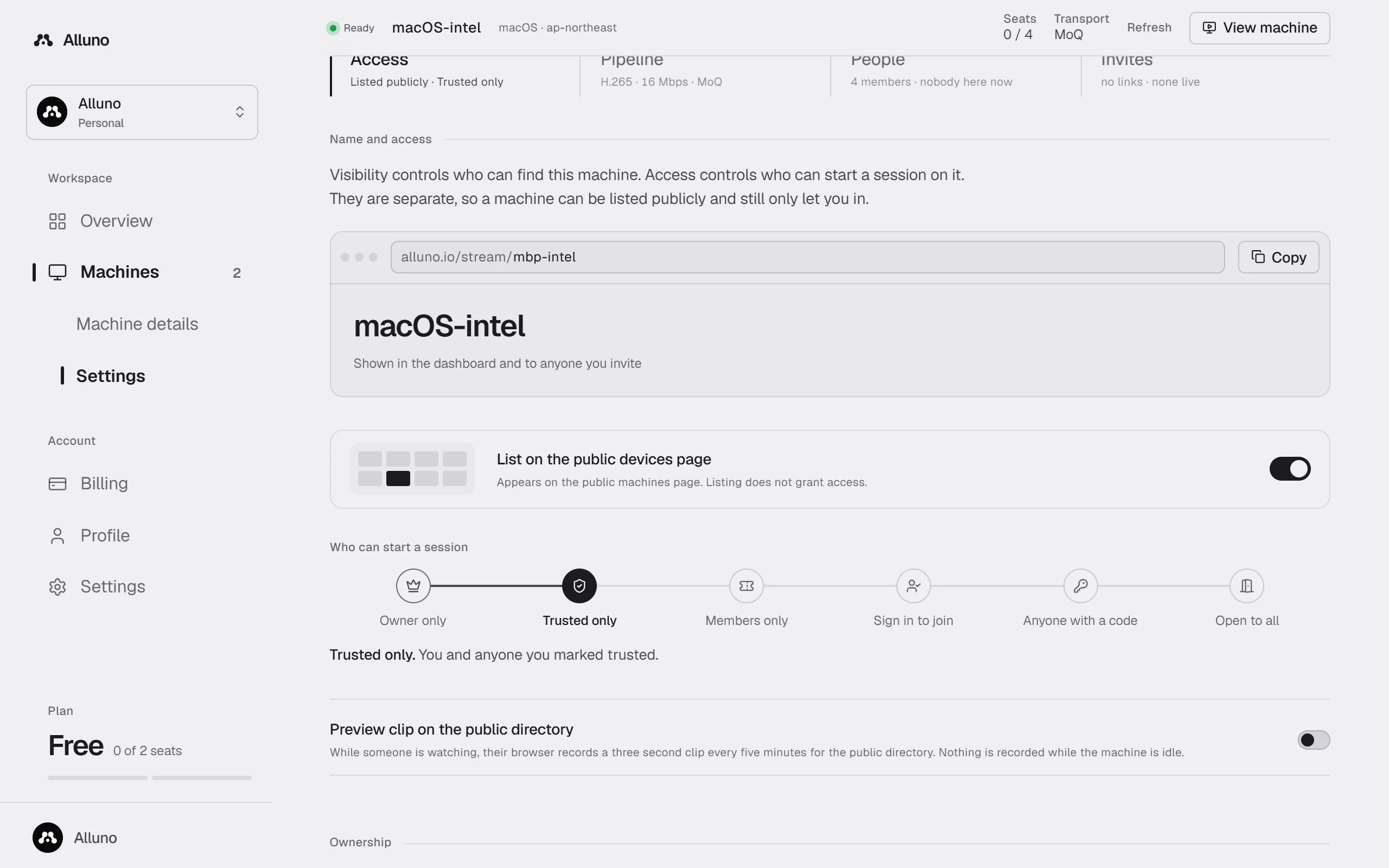
- Display name is shown in the dashboard and to anyone you invite.
- Address is the last part of the machine's link,
alluno.io/stream/.... A custom address needs a paid plan. - List on the public devices page puts the machine on the devices page. Listing does not let anyone in.
- Who can start a session has six levels, from Owner only to Open to all. See People and access.
- Preview clip on the public directory, on a paid plan: while someone is watching, their browser records a three second clip every five minutes. Nothing is recorded while the machine is idle. Turning it off stops new clips and keeps the last one, and Clear preview removes it everywhere.
Pipeline
Stream settings are what the host reads when capture starts. Auto lets the host choose for its hardware. They come in four steps, each summed up on its own card.
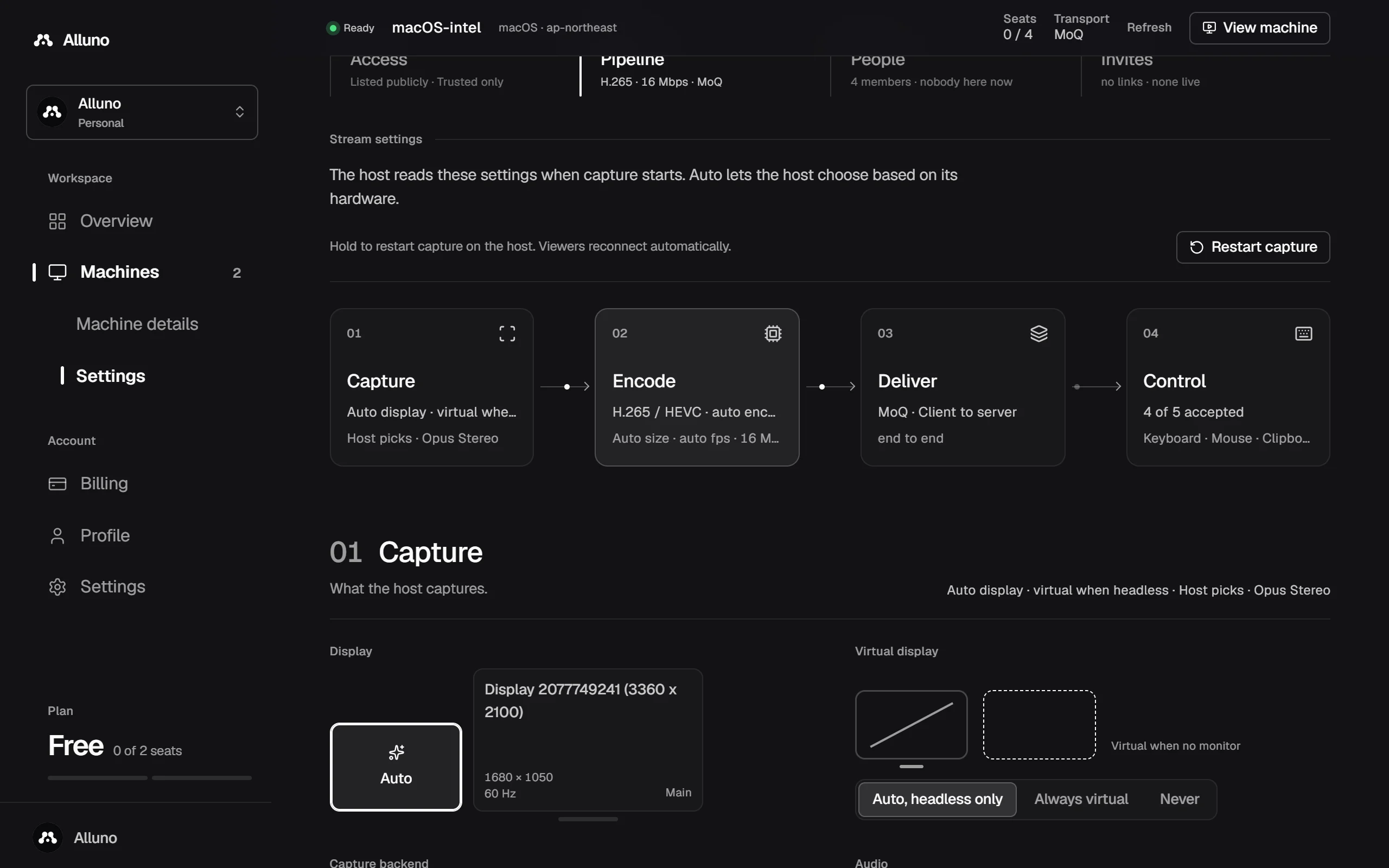
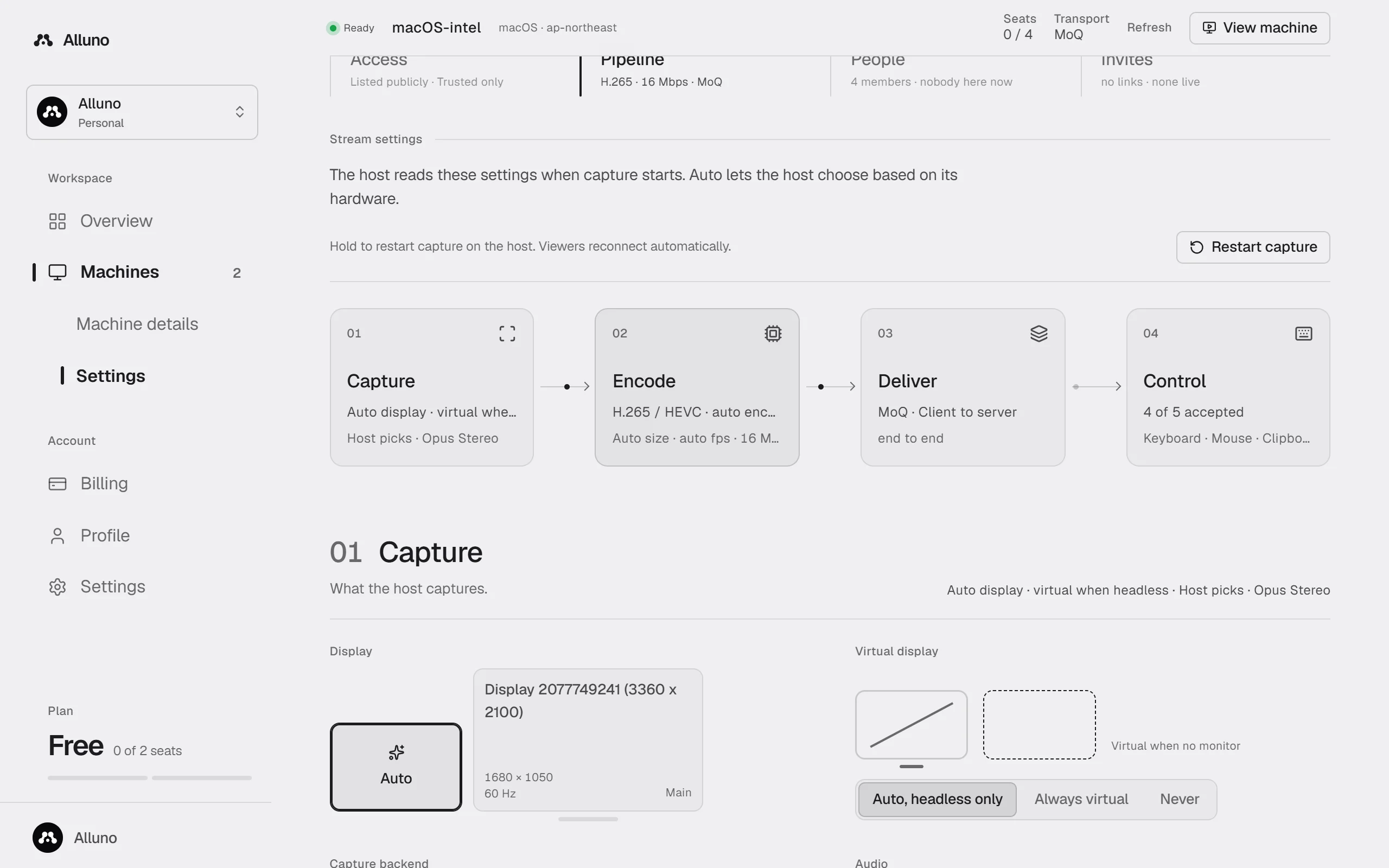
What the host captures: the display, the virtual display, the capture backend and the audio.
How the video is compressed: codec, encoder, size, frame rate, bitrate, pixel format and frame mode. See Video encoding for each choice.
How the stream reaches viewers. MoQ sends them through a relay, so several people can watch at once, or straight to the host on its LAN direct port. WebRTC connects the host and the viewer to each other, directly where the network allows it and through a relay where it does not. End to end encryption keeps the keys with you and your viewers, so a relay cannot read the stream. It applies to MoQ, since WebRTC is always encrypted.
What viewers can control: Keyboard, Mouse, Gamepad, Clipboard to the host and Clipboard from the host, each Accepted or Refused. These are the limits for the whole machine. An invite link or a person can be given less, but not more.
Choose Save settings to keep a change, or Discard to drop it. The machine keeps its current settings until capture restarts: hold Restart capture to restart it now, and viewers reconnect by themselves.
People and Invites
People lists People with access: who can come in and what each may control. See People and access. Invites holds the machine's invite links, on a paid plan. See Join by link or code.
Ownership
Danger zone is at the bottom. Changes there take effect right away.
- Ownership moves the machine to an organization you manage: choose it under Transfer to and hold Hold to transfer. Its members and settings stay, and the new owner controls access from then on.
- Unlink this machine gives it up: hold Hold to unlink. Its settings, invite links and members stay, and you remain a regular member. Its access goes back to the default for a new machine, anyone with the code the host shows can join, and it is not listed publicly. Anyone at the machine can then claim it with that code.