Open a machine
Open a machine from your dashboard, or open the link someone sent you. If the machine asks for a code, type the one time code its host shows on its screen. People the owner marked trusted, and the owner, never see that question.
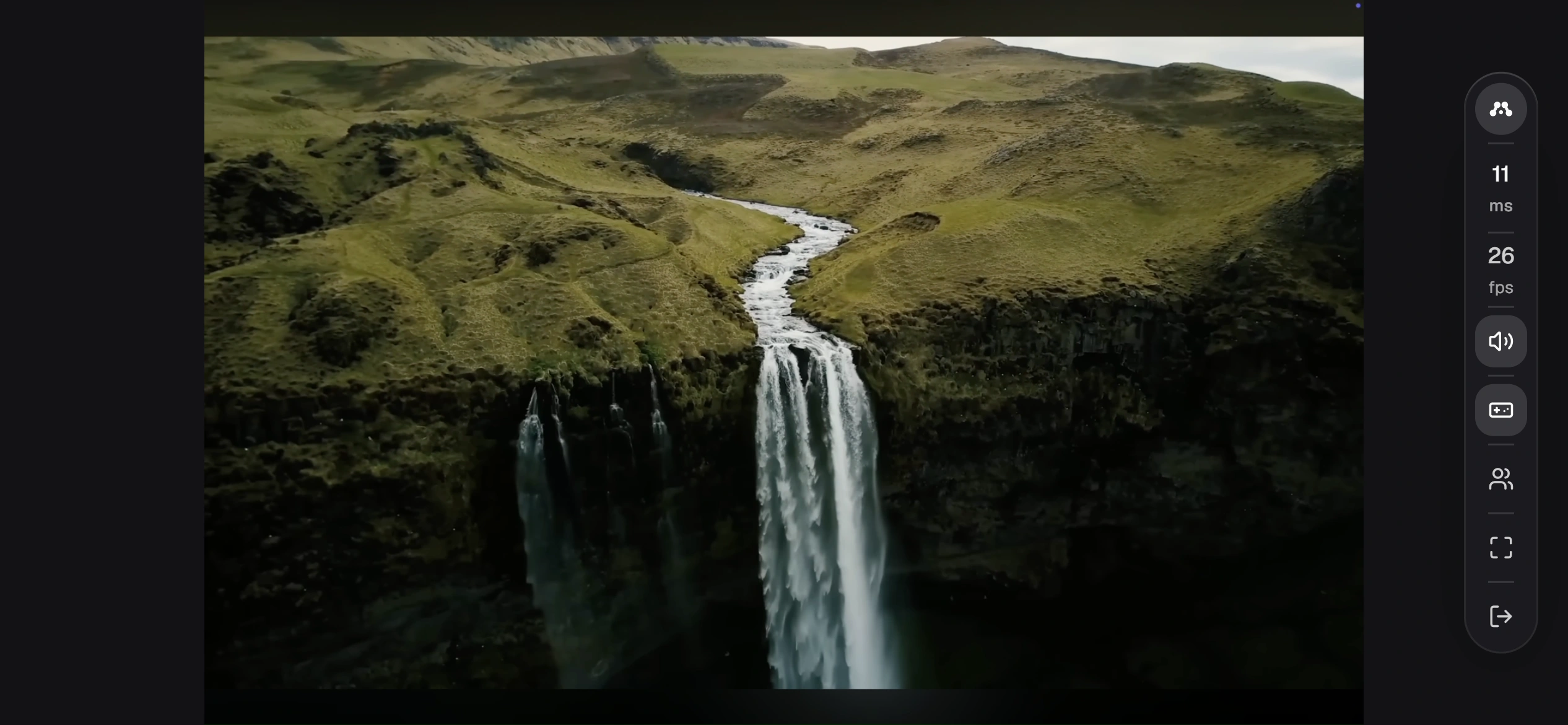
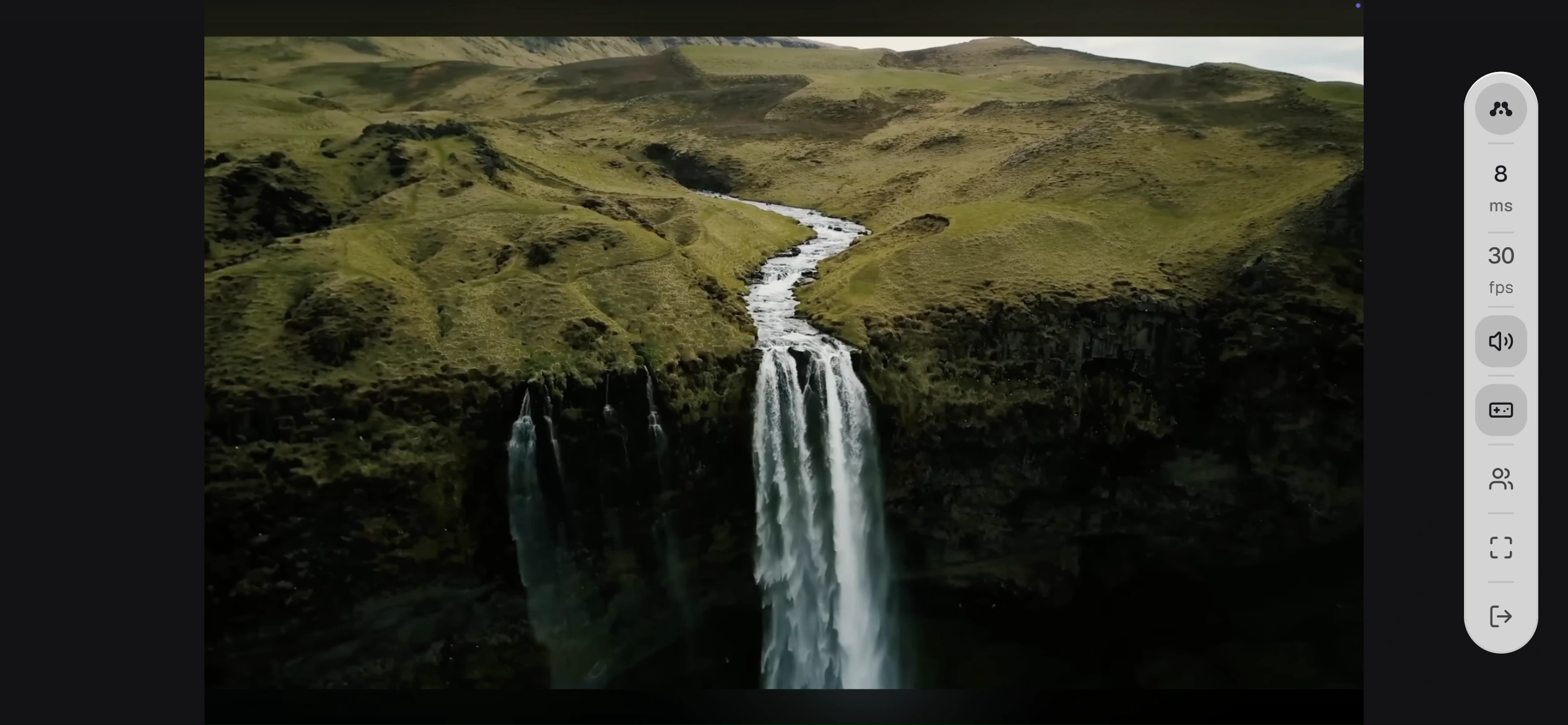
The picture fills the page.
The menu
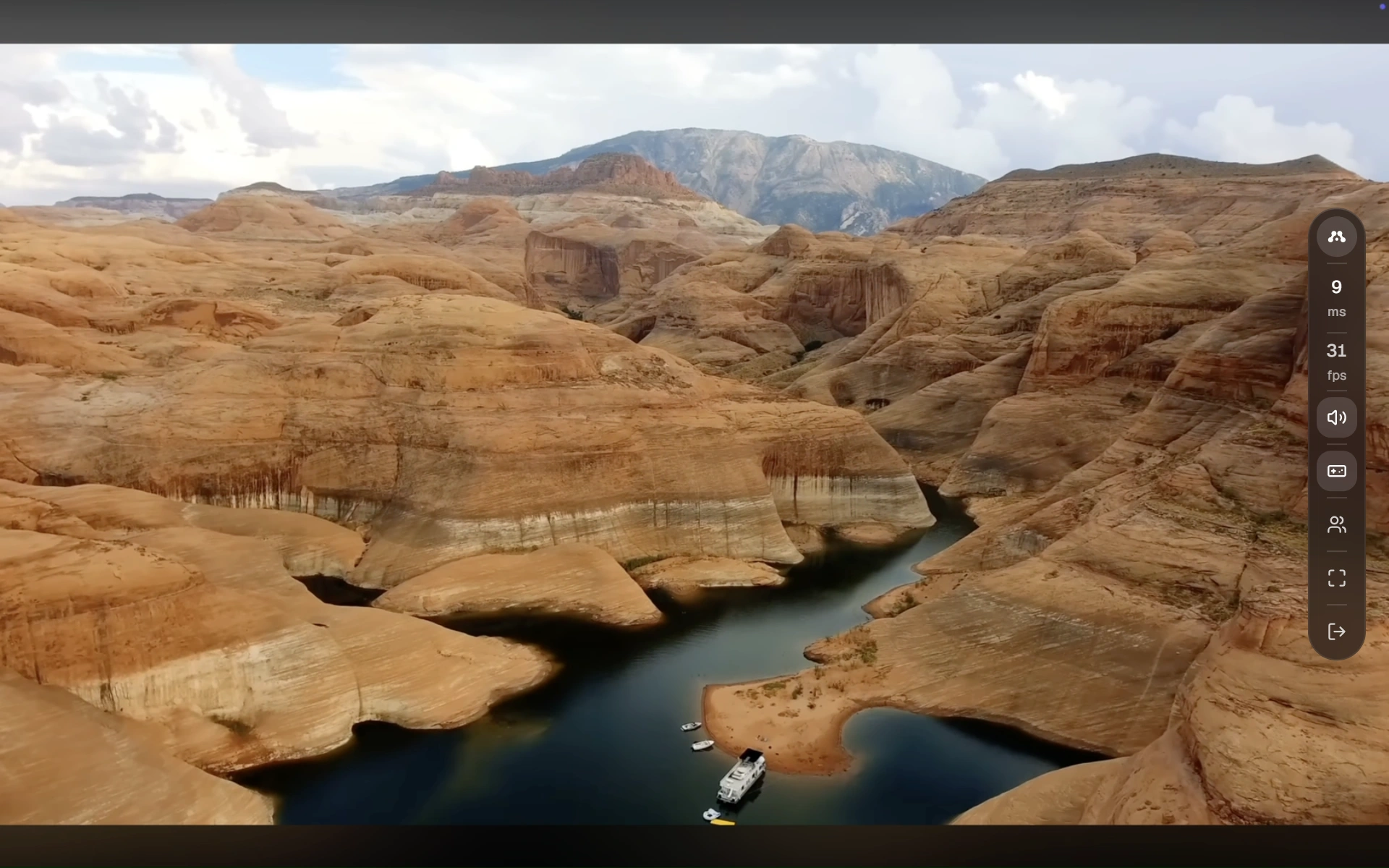
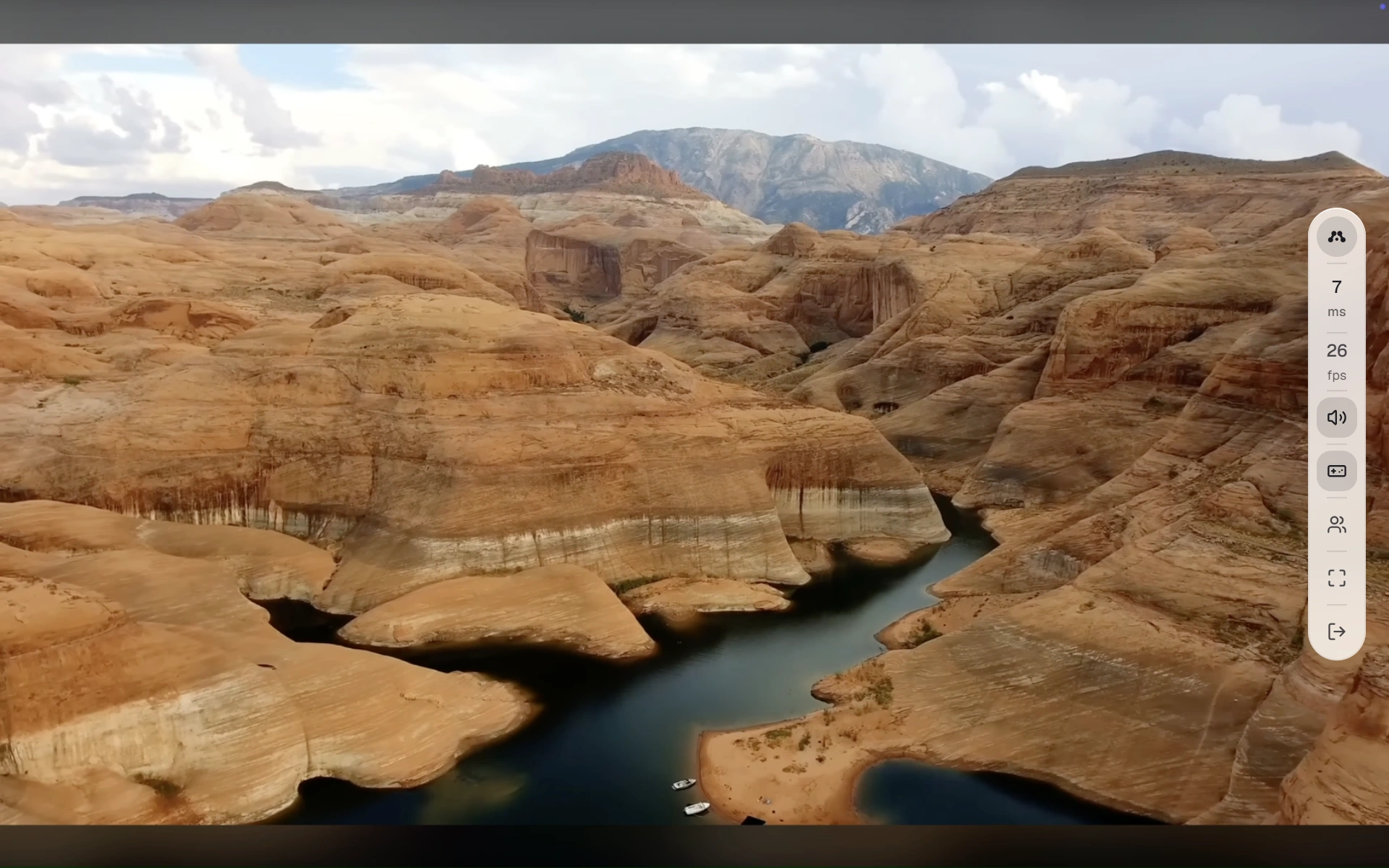
The menu tucks into the edge after three seconds without the pointer, and comes back when you point at it. Double-click the Alluno logo at its top to keep it open, and double-click again to let it tuck away. Drag the logo to move the menu to another edge of the picture. It stays where you left it next time.

 Lock menuStatisticsAudioInput controlsCommunicationFullscreenLeave session
- Lock menu keeps the menu open. Drag it to move the menu.
- Statistics shows the delay in milliseconds and the frame rate. Click it for the full statistics of your session.
- Audio sets the volume of the machine's sound.
- Input controls switches mouse, keyboard and gamepad control on and off.
- Communication opens a voice call and a chat with the others in the session. It needs you to be signed in.
- Fullscreen gives the picture the whole screen.
- Leave session closes the stream. The machine keeps running.
The delay turns amber from 45 ms and red from 80 ms.
Keyboard, mouse and gamepad
Input controls appears when the owner lets you send input to the machine. Point at it, or tap it, to open its switches.
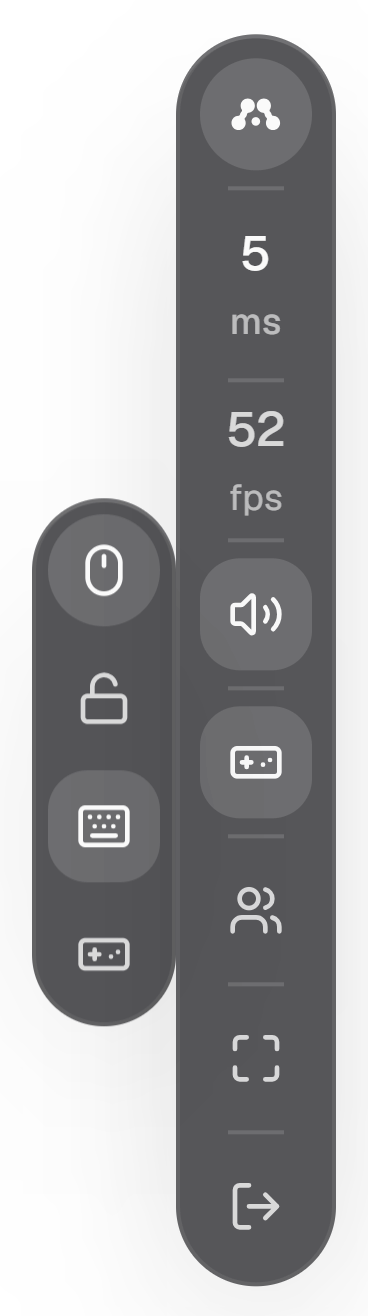
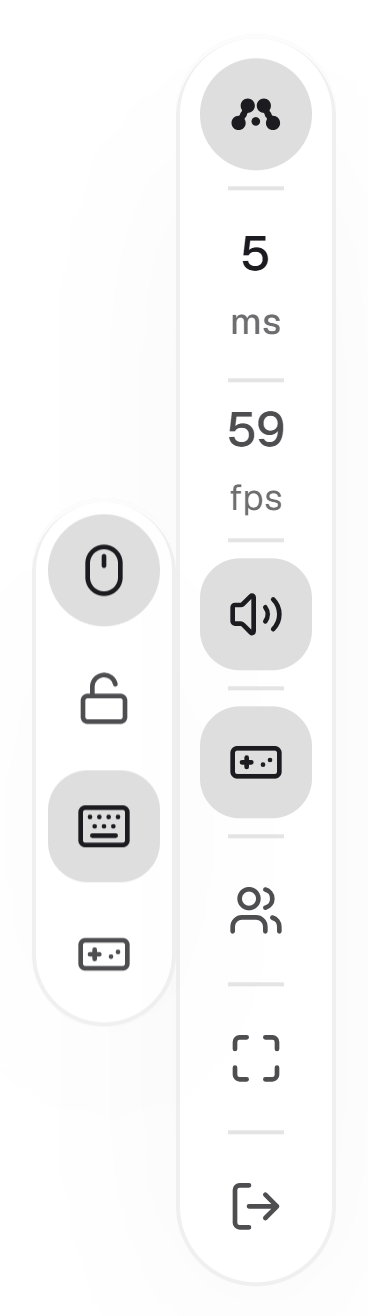 Mouse controlLock pointerKeyboard controlGamepad control
- Mouse control sends your mouse to the machine. A line through the mouse means it is off.
- Lock pointer appears once the mouse is on, and keeps the pointer inside the picture.
- Keyboard control sends your typing. On a touch screen, Show virtual keyboard appears under it once it is on.
- Gamepad control appears when the machine and its owner allow a controller, and sends one connected to your computer or phone.
On a phone
Turn the phone sideways for the biggest picture. The menu waits on the right edge as a small logo. Tap it to open the menu, as in the picture.