All your machines
Open Machines in the dashboard. It lists every machine in the workspace, in any state, with how many are online and how many people are watching.
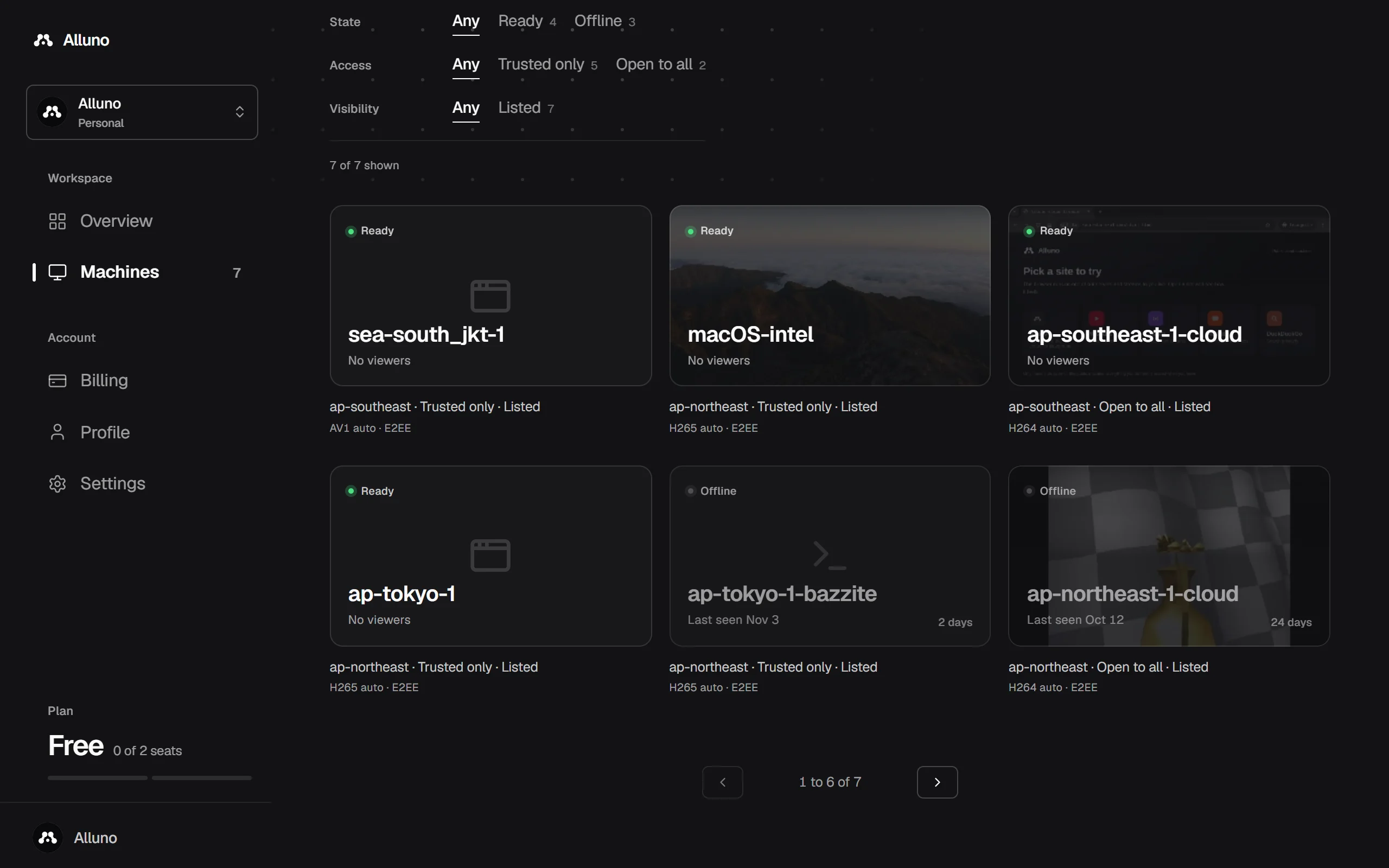
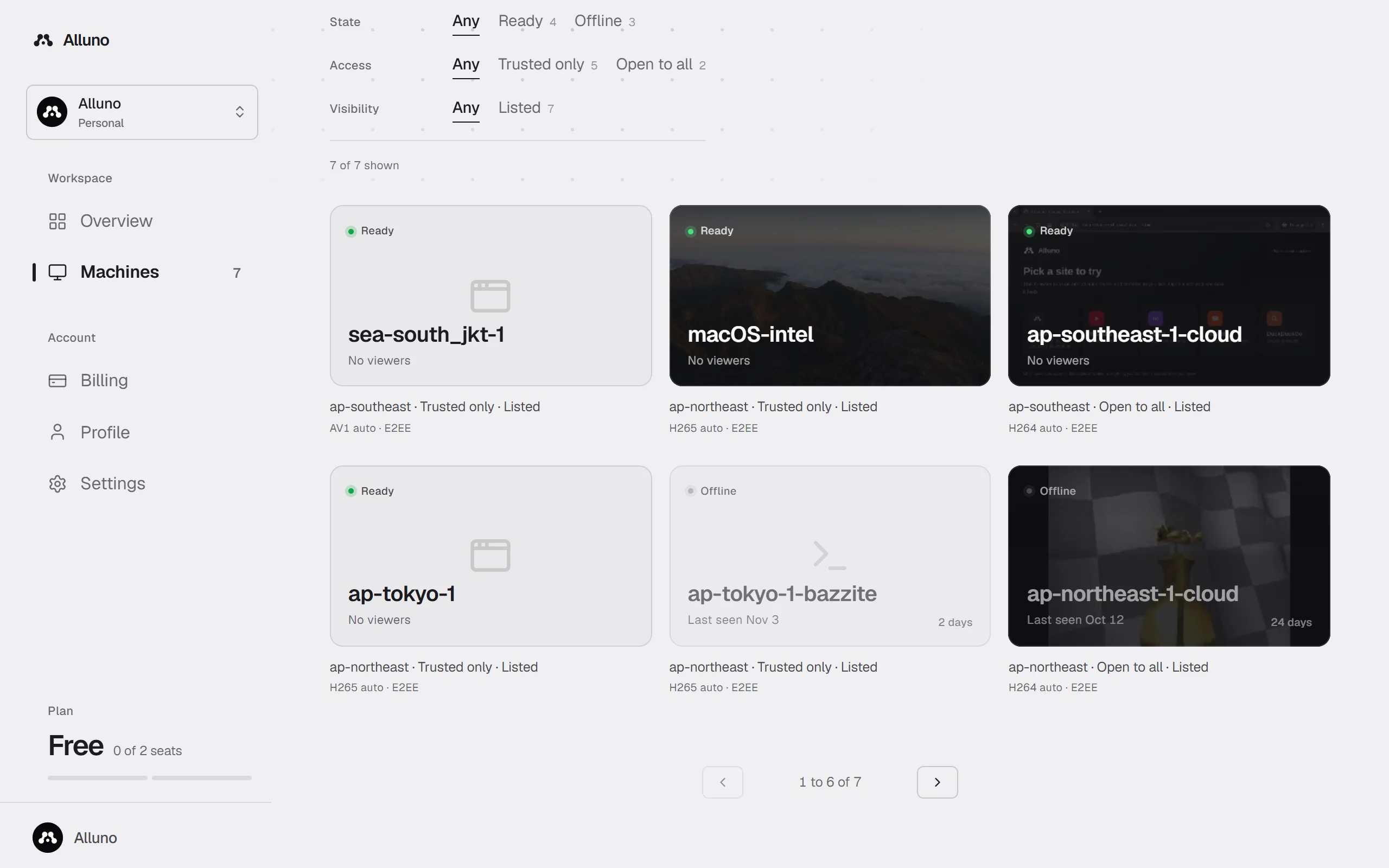
- Each tile shows the machine's state and its latest preview clip, if it has one. Under it are its region, access and visibility, then its codec and whether end to end encryption is on.
- Filter by State, Access and Visibility to find a machine in a long list.
- The panel at the top sums up the workspace: its home region, plan, seats in use, how many machines are listed publicly, the transport and the host version.
Pair a machine
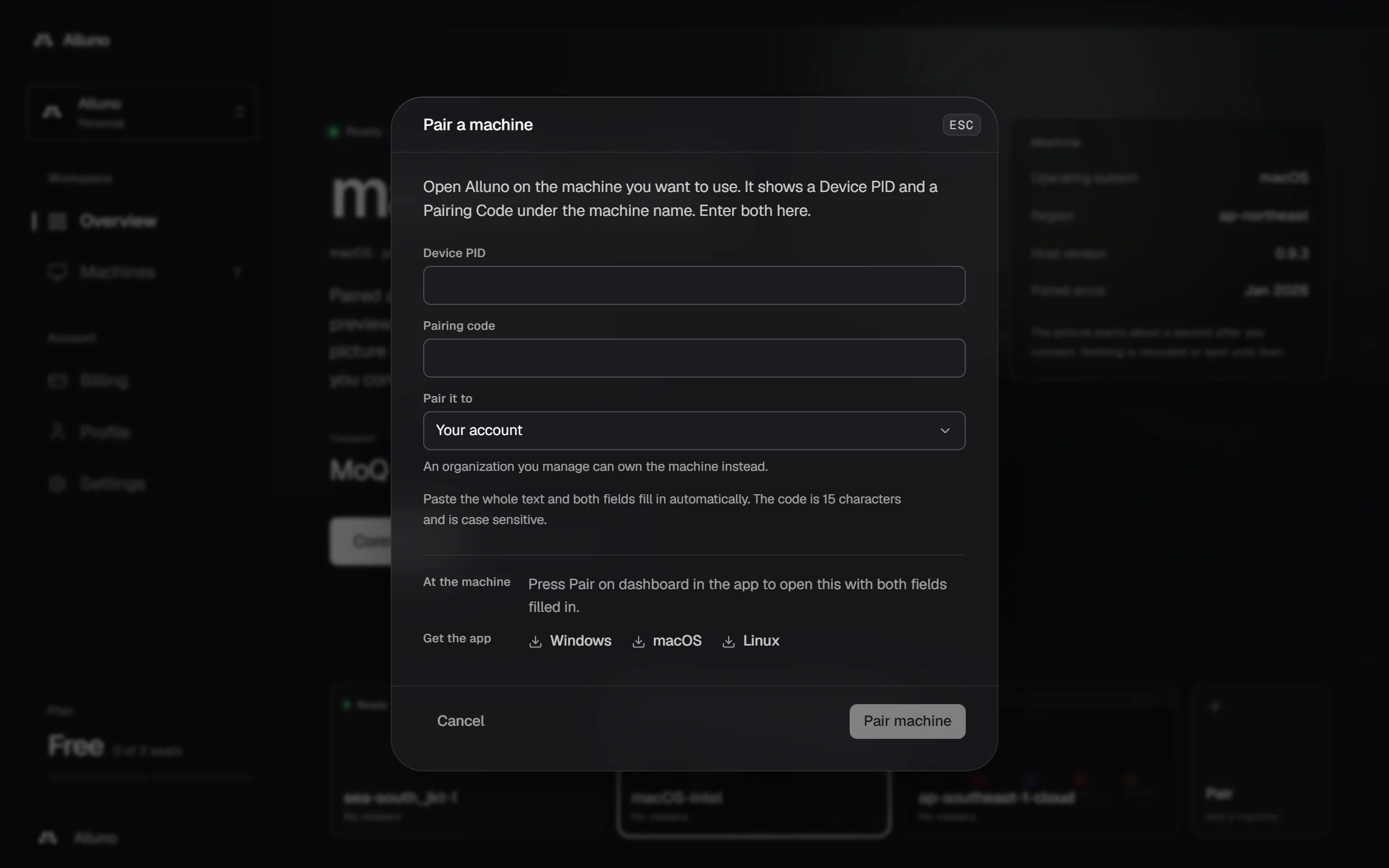
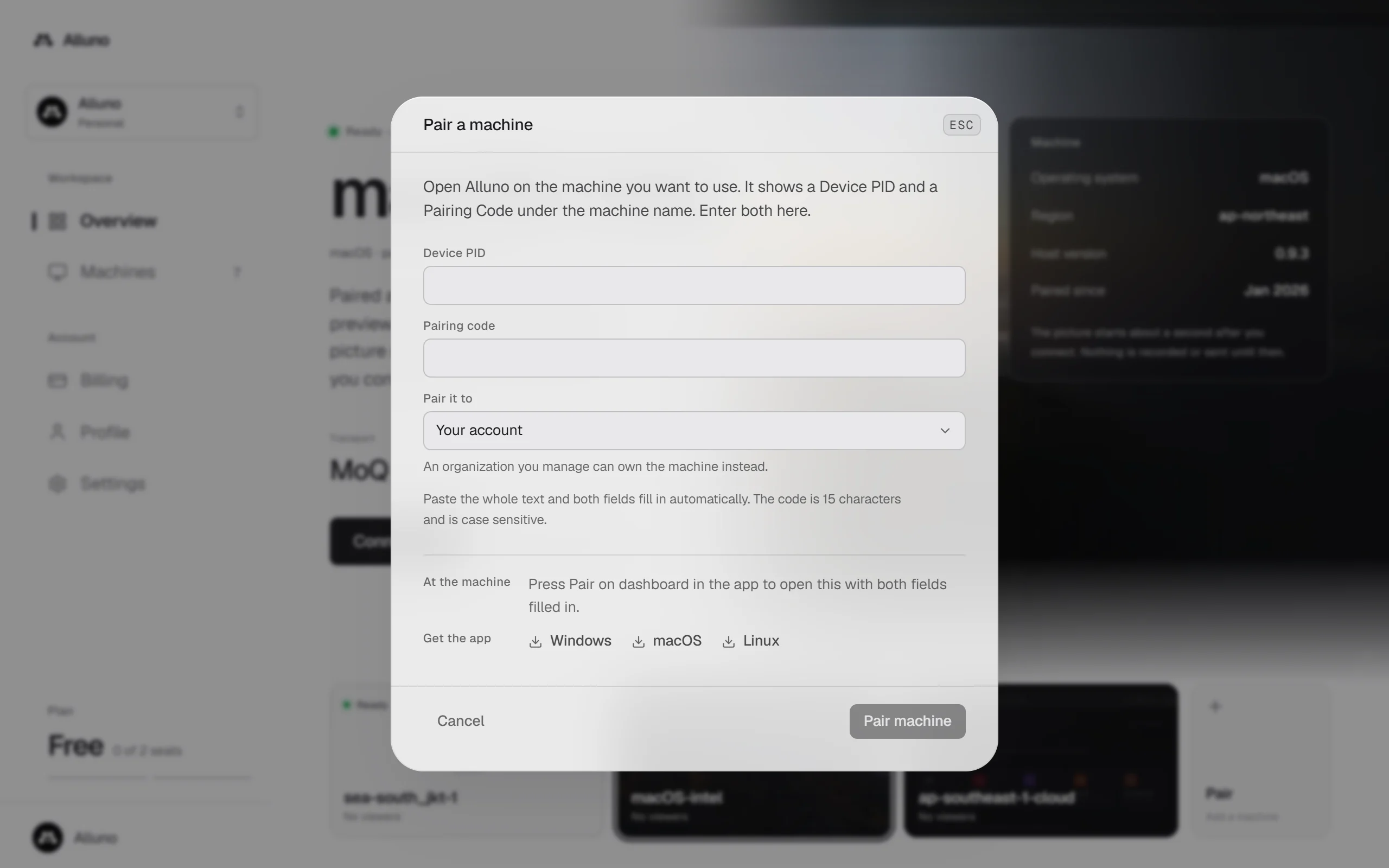
Choose the Pair tile on the dashboard to open Pair a machine.
Get the Device PID and the pairing code
Open the Alluno app on the machine and choose Pair in its menu. The app calls the Device PID its Device ID. No app yet? The dialog links to it for Windows, macOS and Linux.
Enter both
Type them in, or paste the whole text from the app and both fields fill in by themselves. The code is 15 letters and numbers, and capitals matter. If you manage an organization, Pair it to lets the organization own the machine instead of Your account.
Choose Pair machine
The machine joins your account and appears on the dashboard.
Quicker still: choose Pair on dashboard in the app, and this dialog opens in your browser with both fields filled in. See Pair this computer.
A machine's page
Choose a machine to open its page. How it runs shows what the host reported when capture last started: the picture's resolution, refresh rate, codec, encoder and pixel format, how it captures, and how the stream travels.
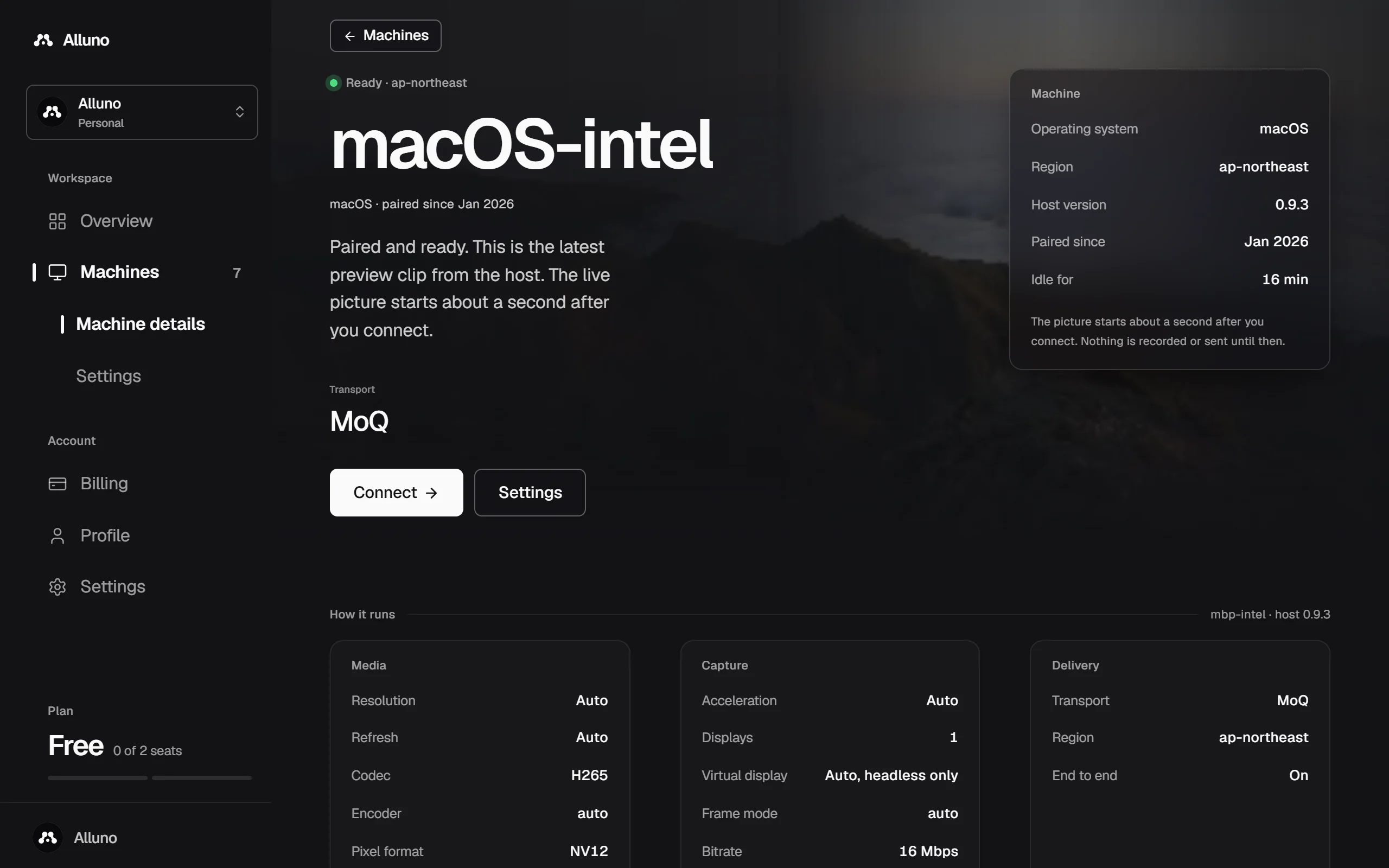
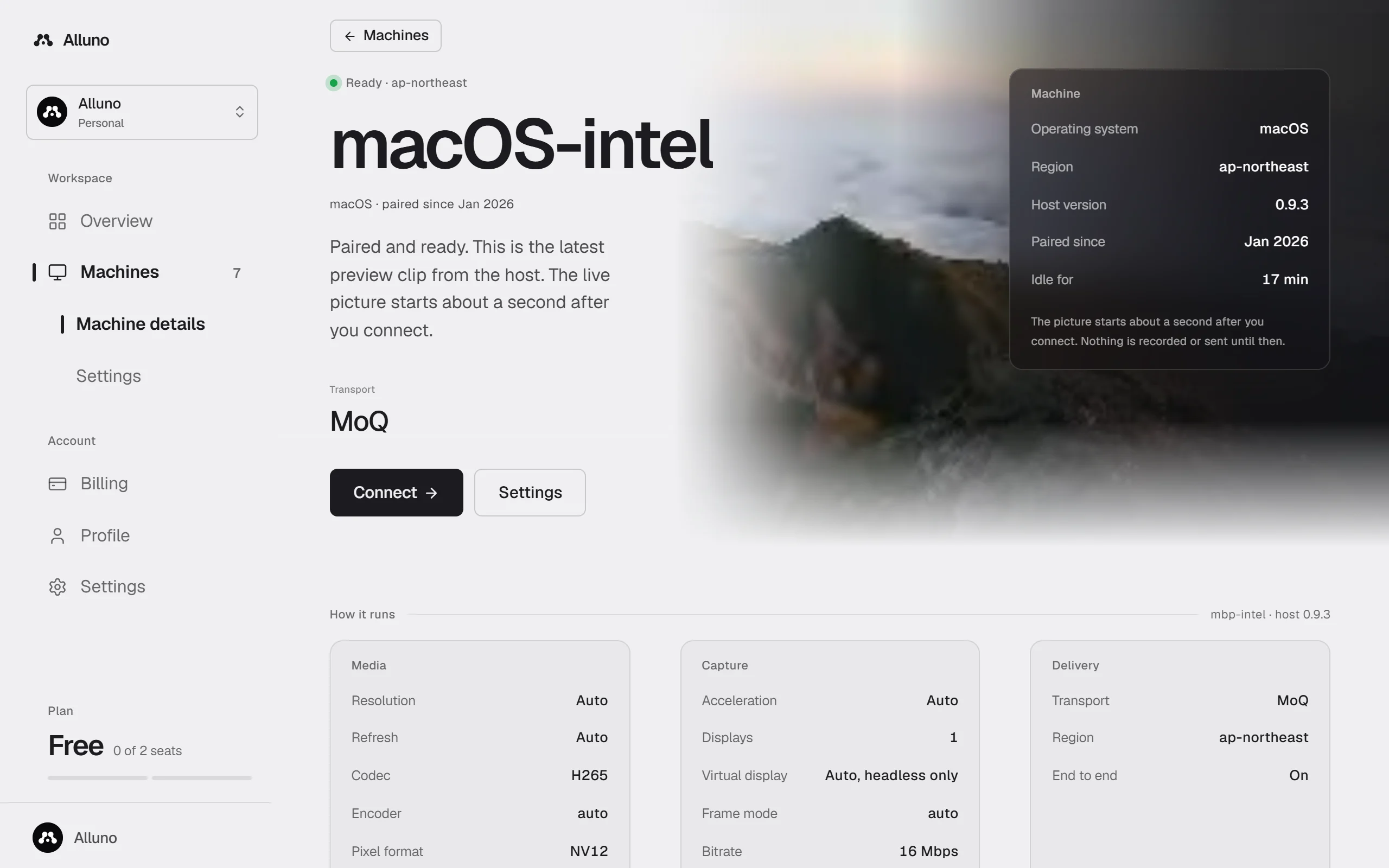
Further down are the people with access to it, its invite links and its recent sessions. Settings opens Machine settings.
Machine settings