Where to find it
The app is a slim bar at the top of your screen that stays above your other windows. Hiding it does not stop it: on a Mac its icon stays in the menu bar, and on Windows and Linux in the tray. Click the icon to bring the bar back.
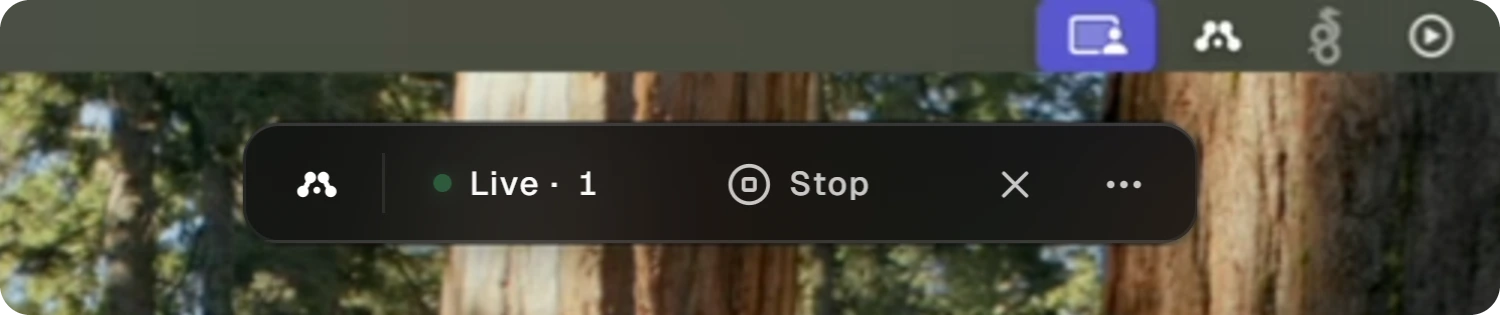
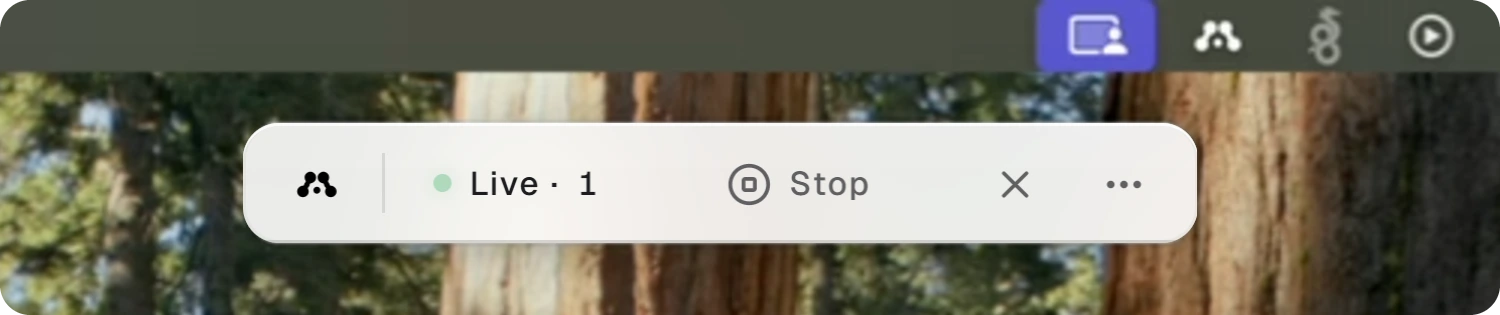
The bar

 StatusStart or stopHideMenu
- Status reads Live while the computer is streaming, followed by the number of people connected. It reads Connecting while the app reaches Alluno, Idle while the stream is off, and Error when something stopped it.
- Stop ends the stream and switches capture off, and everyone watching is disconnected. The button then reads Start. With the background service installed, these two start and stop the service.
- Hide, the cross, tucks the bar away. The stream keeps running.
- Menu, the three dots, opens the menu.
On a Mac, a warning triangle joins the bar when Screen Recording or Accessibility is off for Alluno. Click it to open that page of System Settings, then switch Alluno on. If macOS asks, reopen Alluno.
The menu
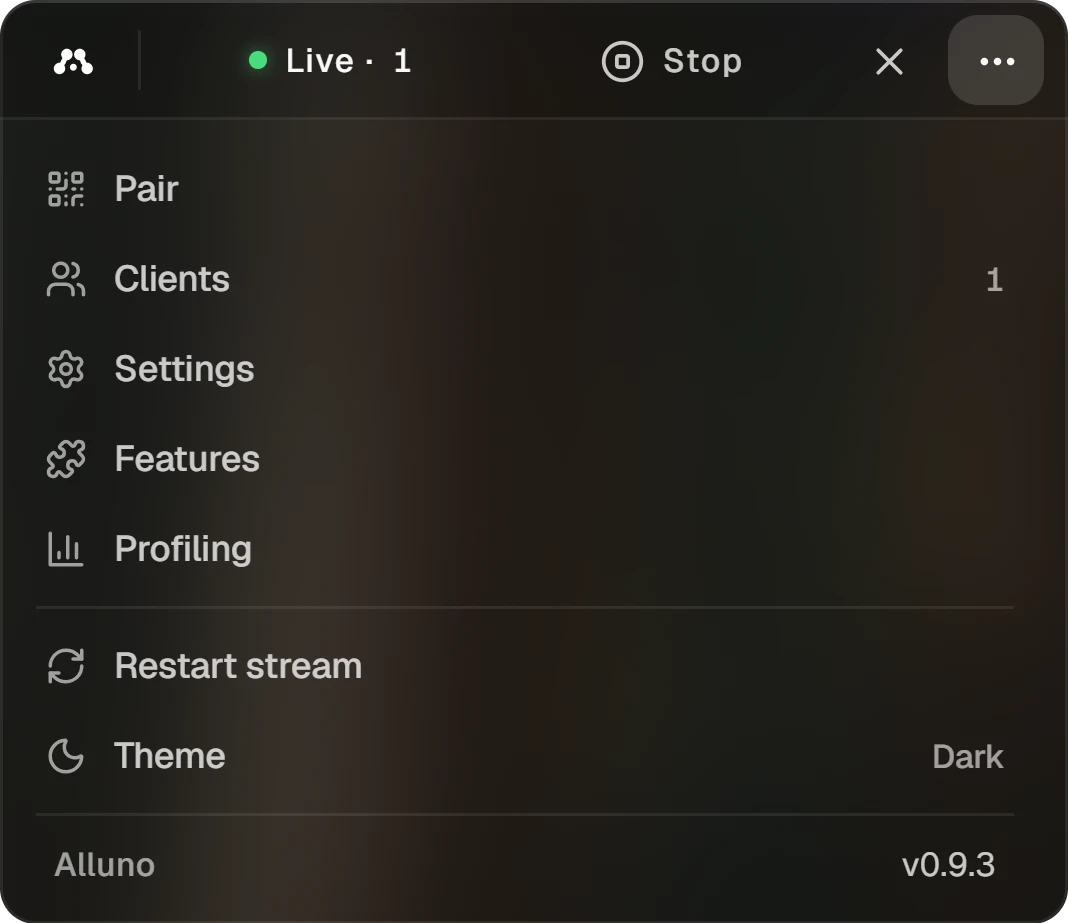
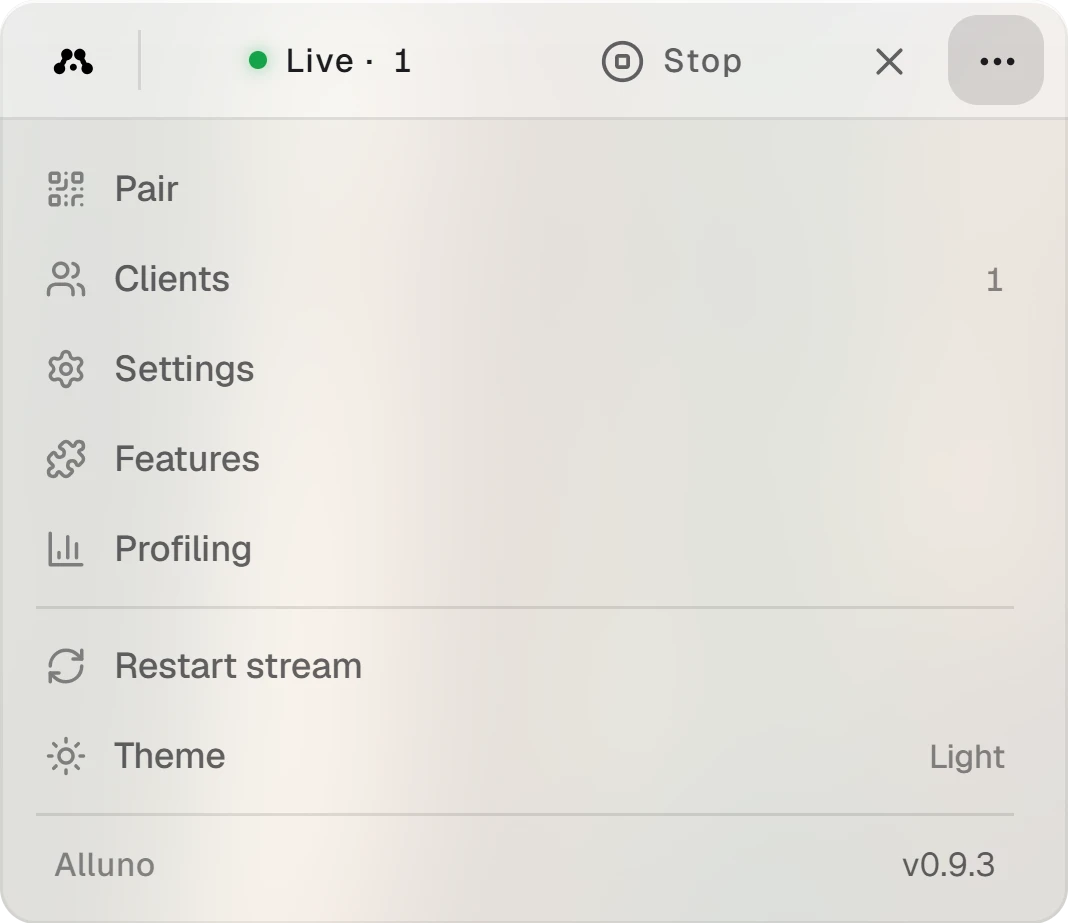
- Pair shows this computer's link, Device ID and pairing code. See Pair this computer.
- Clients lists the people connected, and the number beside it counts them. See People connected.
- Settings holds the video, audio, network, control and startup settings. See Video and audio and Network and control.
- Features installs the background service, and on Windows the drivers. See Background service and drivers.
- Profiling times every frame. It shows while the app runs the stream itself. See Profiling.
- Restart stream stops the stream and starts it again in one step. It shows while the stream is on.
- Theme switches the app between dark and light.
The bottom line shows the version you have. When a newer one is out, Update available appears at the top of the menu with its version number. Click it to install the update.
Pair this computer